Stream Acquisitions
Acquisition process for Canada Radio and US Stream Radio.
Stream Acquisitions
Stream acquisition covers all stations collected via internet stream. Both Canada Radio and US Stream Radio use this method. All stream markets require a proxy to ensure accurate ad collection — see the Proxies and DAI section below for details.
| Channel | Recorder Prefix | Notes |
|---|---|---|
| Canada Radio | RADIO | All internet stream |
| US Stream Radio | US | Stream-only market |
| US Stream Radio | VPS | Stream + OTA market · paired with a CAP OTA recorder |
Proxies and DAI
DAI (Dynamic Ad Insertion) is a technology used by broadcasters to dynamically replace ads in a stream based on the listener's geographic location. When a stream is accessed, the broadcaster's server detects the requester's IP address and serves ads targeted to that location. Without intervention, Adease's recordings would capture ads targeted to Adease's own location — not the ads that actually aired in the monitored market.
To ensure accurate ad collection, Adease uses proxies to mask its actual IP address and appear as though the stream request is coming from the correct market. This causes DAI to serve the locally-targeted ads that listeners in that city actually heard, which is what Adease needs to record and report on.
Proxies apply to all stream markets — both Canada and US.
Selecting the right proxy:
- Always select a proxy that matches the recorder's city.
- If no proxy is available for that city, select the next closest city as a fallback.
Assigning a Proxy
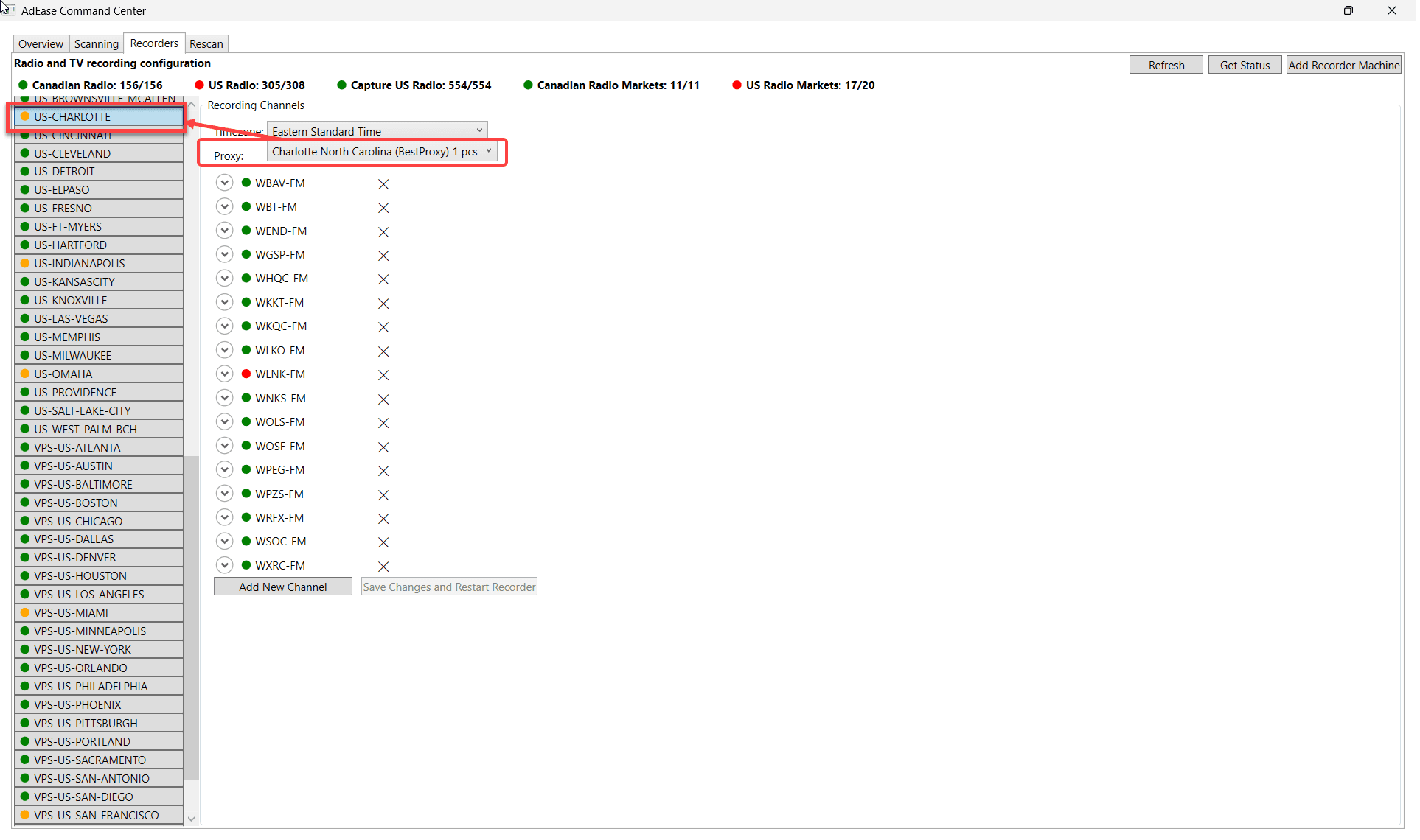
- In Command Centre, click the recorder name on the left-hand side. The list of stations for that recorder will appear on the right.
- At the top of the station list there are two dropdowns:
- Timezone — reflects the city's local timezone for accurate reporting. This is set during recorder setup and should not be changed.
- Proxy — use this dropdown to assign or change the proxy for the recorder.
- Select the appropriate proxy from the Proxy dropdown.
- Click Save Changes and Restart Recorder to apply the change.
When to change a proxy: A proxy issue may be indicated by any of the following:
- The recording graphics show a full outage or barcode pattern on a specific recorder
- The recorder status is red — all stations on that recorder are not recording
- The ads captured don't match the expected local market
If any of these occur and a stream URL issue has been ruled out, switch to a proxy for the same city or the next closest city.
Checking for Stream Outages
Stream outages can be identified in two ways: via the Recording Graphics and via the Recorders Tab. Each method catches different types of issues — using both together gives a complete picture.
Recording Graphics
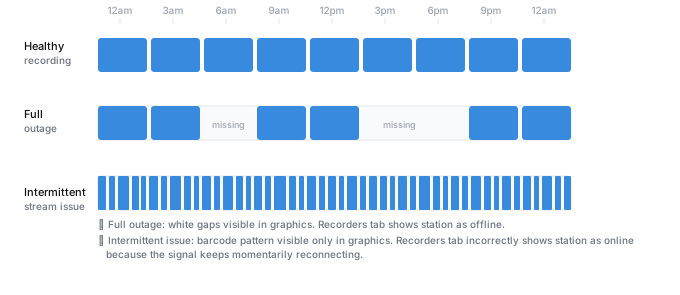
The recording graphics are the most reliable indicator of stream health. Stream issues appear in two forms:
Full outage — the stream goes completely offline, leaving white gaps in the graphics where no recording was captured. The Recorders tab will show the station as offline. Ad activity for those periods is permanently lost from client reports.
Intermittent issue — the stream signal keeps dropping in and out, resulting in many short recordings that never reach a full 3-hour block. In the graphics this appears as a barcode pattern. This type of issue can only be identified via the recording graphics — the Recorders tab will incorrectly show the station as online because the signal keeps momentarily reconnecting.
Recorders Tab
The Recorders tab provides a quick at-a-glance view of recorder health using colour indicators. It will catch full outages but cannot detect intermittent issues.
- Green — all stations in that recorder are online and healthy
- Yellow — at least one station in that recorder is offline
- Red — all stations in that recorder are offline
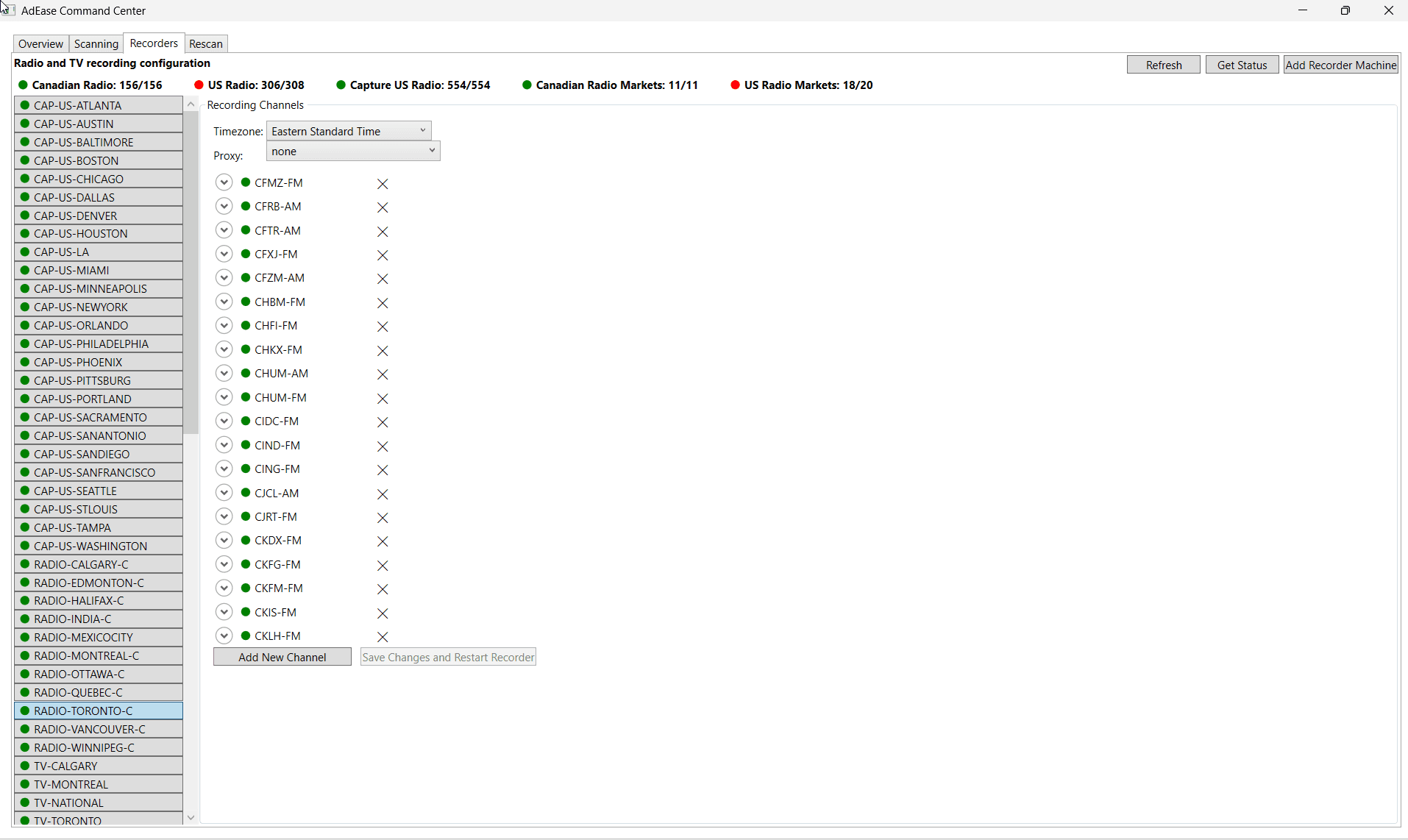
If a recorder shows yellow or red, proceed to the steps below to identify the offline station and replace its stream URL.
Replacing a stream URL
If a station is offline due to a changed or broken stream URL, follow these steps to identify the station and update it in Command Centre.
Step 1 — Identify the offline station
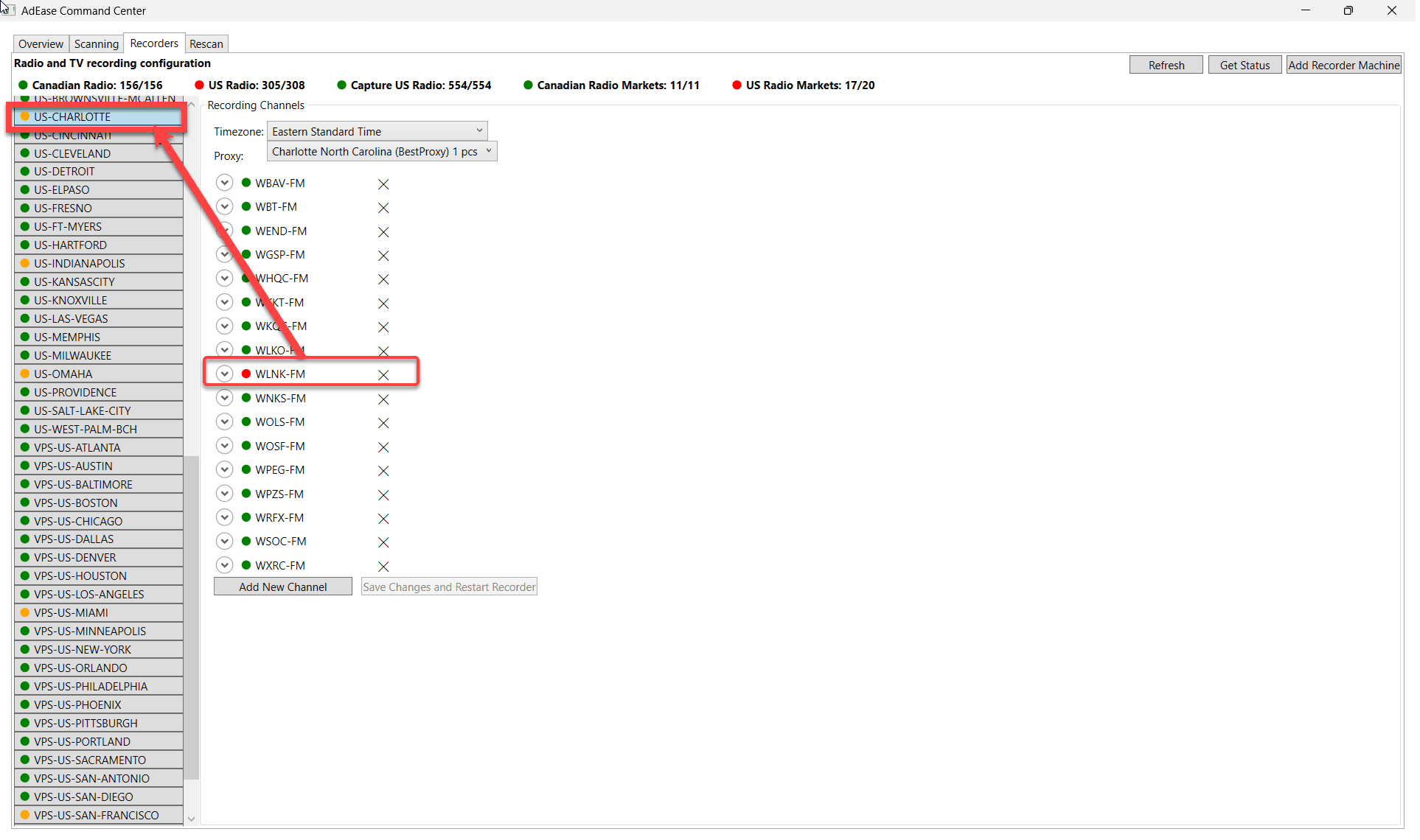
- Click on the Recorders tab in Command Centre.
- Markets are listed on the left. Click on any market that is yellow or red.
- A list of stations for that recorder will appear on the right. Stations with a red icon are offline and need attention.
Step 2 — Find the new stream URL
- Locate the station's website using Google and open it. If the station's website is down or does not provide a playable stream, check a third-party streaming site instead — such as TuneIn, radio.net, or myTuner. These sites aggregate streams from stations and can be used as an alternative source to capture the stream URL via DevTools.
If a working stream cannot be found:
- After 1 day — Search for news articles or the station's Wikipedia page to check for any recent station changes (call sign, format, or ownership changes) that may explain why the stream is unavailable. Refer to the Station Changes section for guidance. Additionally, contact the station directly using the contact information on their website to inquire about the stream.
- After 2 days — Notify the leadership team of the ongoing outage and continue monitoring for an available stream in the meantime. The leadership team will provide direction on whether the client needs to be notified.
Note — Corus stations: Corus is a Canadian radio broadcasting company. They provide a dedicated directory of their stream URLs — use the Corus direct streams list to find the correct URL instead of sourcing it via the station's website and DevTools.
Note — US stations: Some US stations require a proxy to be accessed at all. If a US stream cannot be reached, contact an Adease developer who can assist with downloading a proxy or acquiring the required stream access.
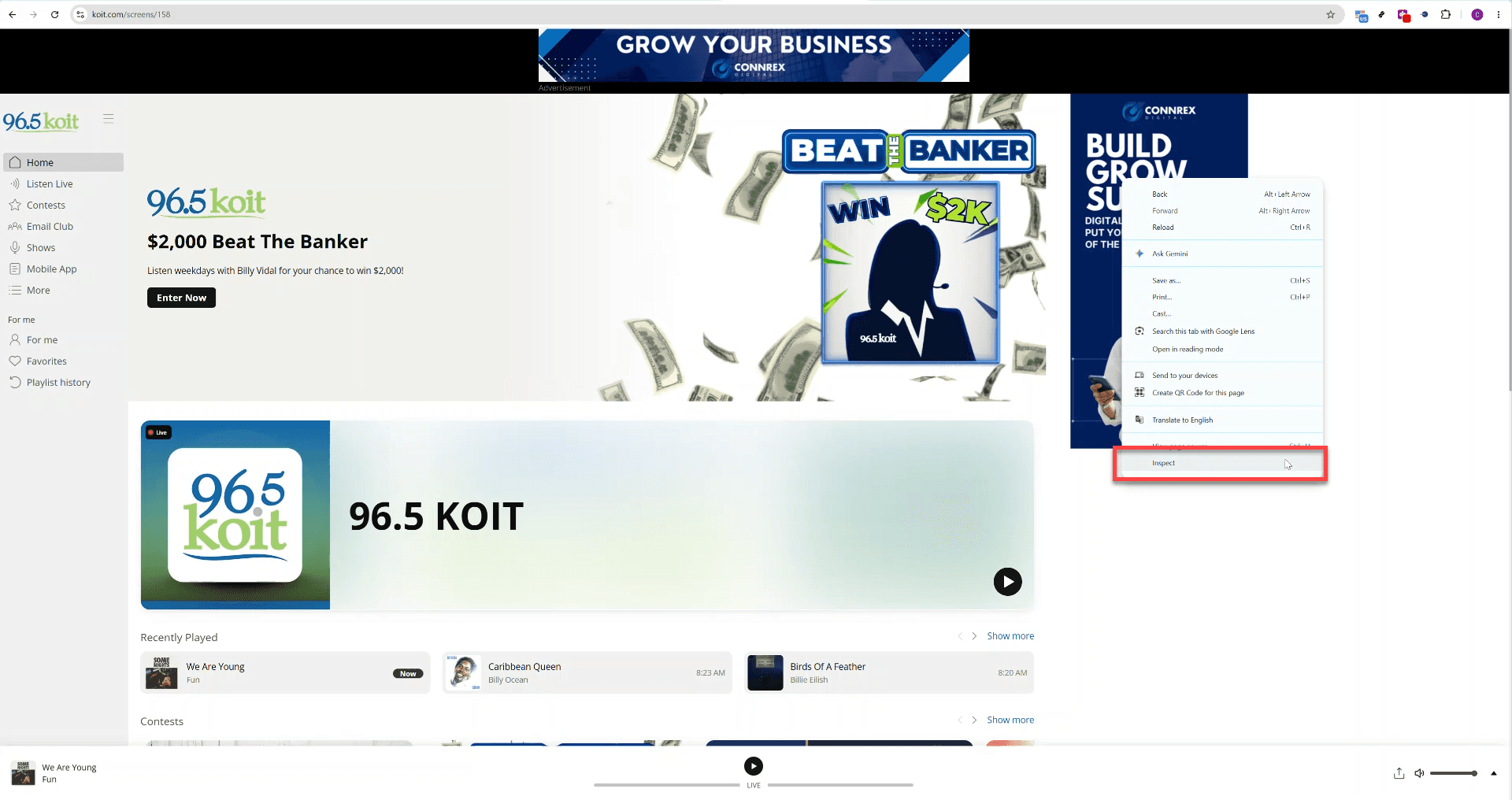
- Right-click anywhere on the page and select Inspect from the menu.
- In the sidebar that opens, click the Network tab.
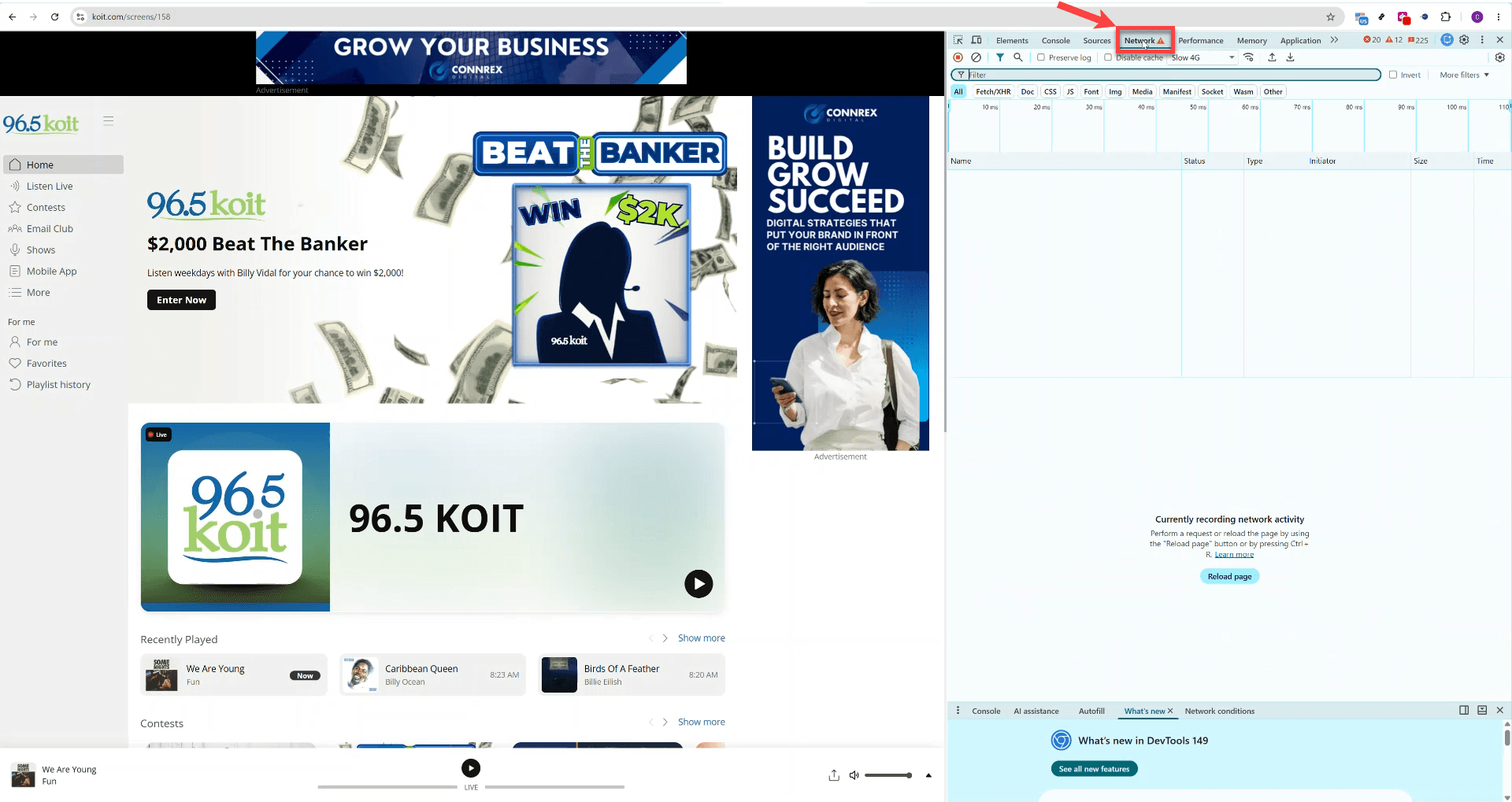
- Click the play button to start the stream.
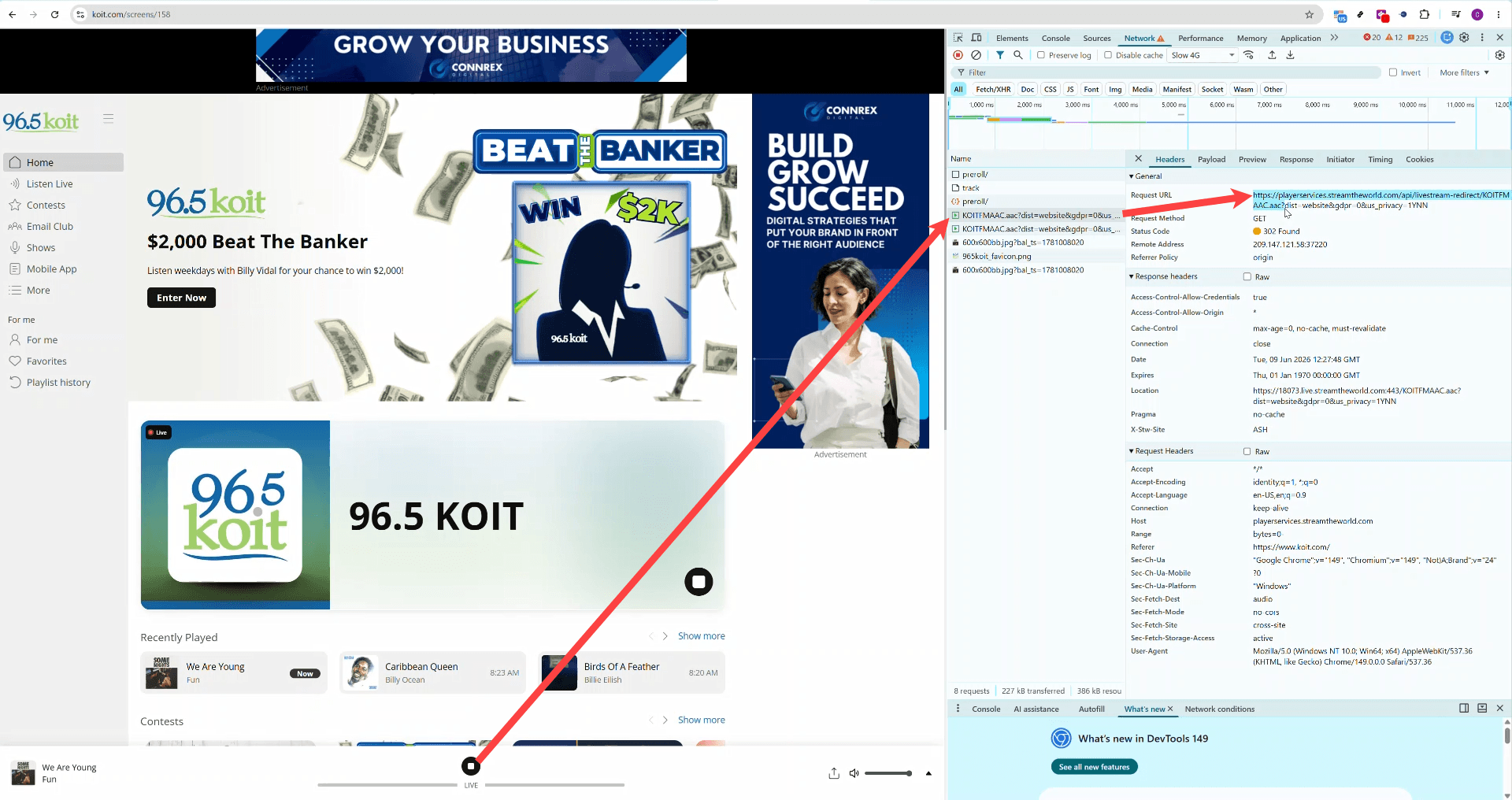
- Type
streamin the filter and locate a request matching one of the following types:- Playlist
- AAC
- m3u8
- Click the request to view the full URL.
Important: Copy the URL starting from the beginning and stop at the matching suffix (
.aac,.m3u8,playlist, etc.). Do not include anything after the suffix — refer to the URL Formats section for examples of how the URL should look.
Step 3 — Update Command Centre
- Return to Command Centre. Click the expand arrow beside the offline station — a yellow box will appear showing the current stream URL.
- Click the expand arrow below the yellow box — a red input box will open.
- Paste the new URL into the red box.
- Click Save Changes and Restart Recorder at the bottom of the list.
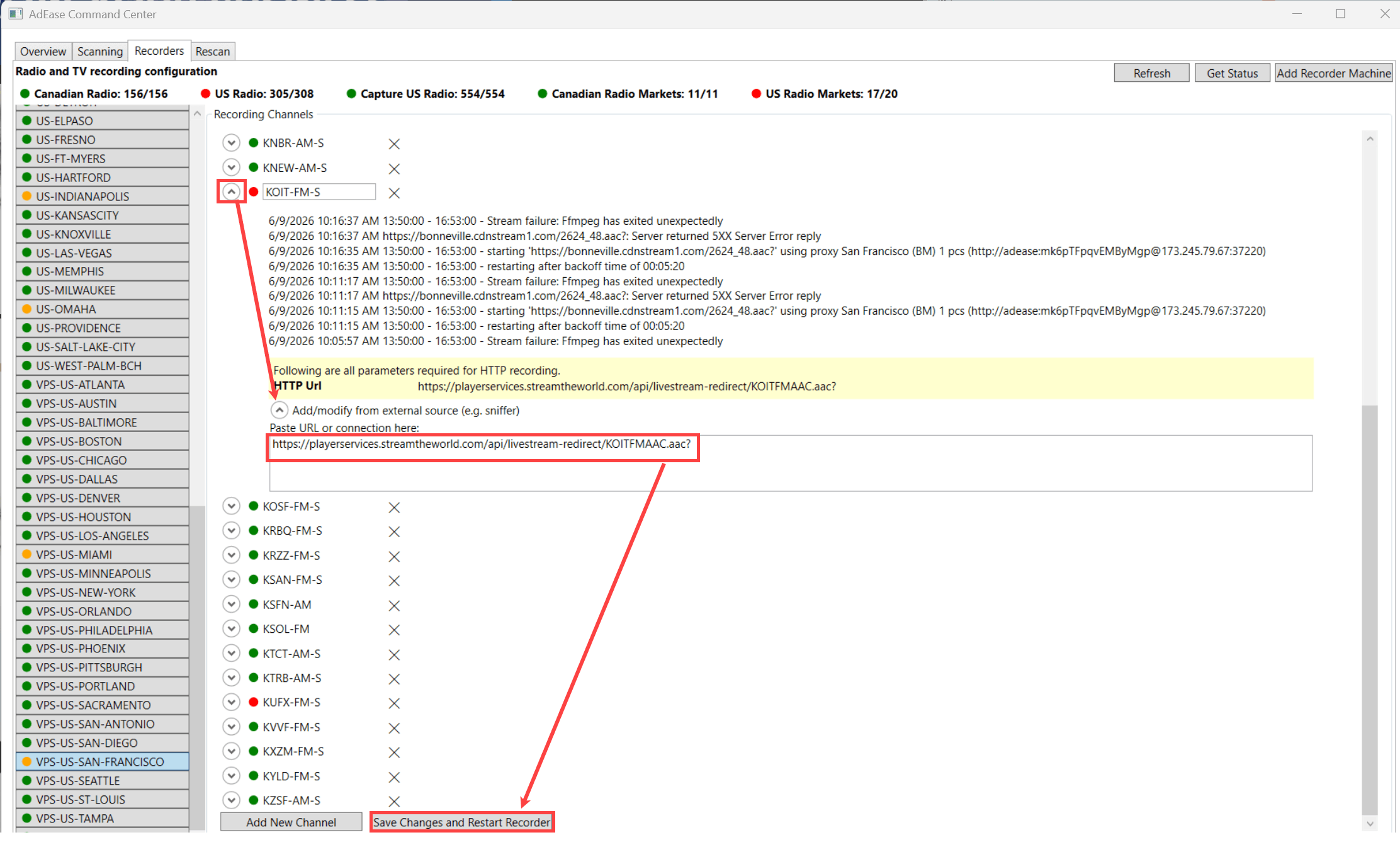
Once saved, the recorder will restart automatically. Check the Recorders tab to confirm the station's icon has returned to green.
URL Formats
Use these as a reference when validating or replacing a stream URL — the format should match the broadcaster's pattern for that station. Stream URLs generally do not change unless there is a call sign or station re-branding, because Adease uses the broadcaster's direct source URL rather than a third-party or embedded player link.
If you are unsure who owns a station, search the call sign on Google or Wikipedia to find the broadcaster.
Canada
Bell Media note: #auth is appended to the end of all Bell stream URLs. This is mandatory for Bell stations only — it is coded in Command Centre to use a token to eliminate DAI.
| Broadcaster | URL Format |
|---|---|
| Rogers | https://rogers-hls.leanstream.co/rogers/cal960.stream/48k/playlist.m3u8 |
| Harvard Media | http://cfex.streamon.fm:8000/CFEX-64k.aac? |
| Corus | https://nyc-edge1-entry1.leanstream-hd.com:2113/CFGQFM-MP3-2 |
| Stingray | https://stingray.leanstream.co/CFXLFM?aisGetOriginalStream=true |
| Rawlco | http://rawlco.leanstream.co/CHUPFM? |
| Bell Media | https://playerservices.streamtheworld.com/api/livestream-redirect/CIBKFM.mp3#auth |
| Jim Pattison | https://stream.jpbgdigital.com/CKWD/HEAAC/48k/playlist.m3u8? |
US
| Broadcaster | URL Format |
|---|---|
| Cox Media Group | https://ad-oom-cmg.streamguys1.com/atl1041/atl1041-sgplayer-aac? |
| Cox Media Group (alt) | https://cmg.streamguys1.com/atl750/atl750-sgplayer-aac? |
| Urban One | https://playerservices.streamtheworld.com/api/livestream-redirect/WAMJFMAAC.aac |
| iHeart Media | https://stream.revma.ihrhls.com/zc6066 |
| Audacy | https://live.amperwave.net/manifest/audacy-wstrfmaac-hlsc.m3u8? |
| Cumulus | https://playerservices.streamtheworld.com/api/livestream-redirect/WWWQFMAAC.aac |
| Various (Securenet Systems) | https://ice25.securenetsystems.net/KOPW? |