Flyer
Acquisition process for flyer media — monitoring, adding, editing, and deleting flyers in the Adease back-end.
Flyer
Flyer acquisition is managed entirely in the Adease back-end website — Command Centre is not involved. Flyers are sourced primarily from flyertown.ca and collected automatically by a parser that runs on a schedule configured per flyer.
Most flyers release on Thursdays, with a smaller number releasing on Wednesdays and Fridays.
Flyer Monitor
The Flyer Monitor should be checked every Thursday and Friday. Since the majority of flyers release on Thursdays, checking across both days catches any errors from the Thursday release while also covering the smaller number of Wednesday and Friday flyers. The check is quick — you only need to scan a few pages for any status message errors.
To access the Flyer Monitor, open the Flyers / Print menu in the Adease back-end and select Flyer Monitor. Click the Search button to load all monitored flyers.
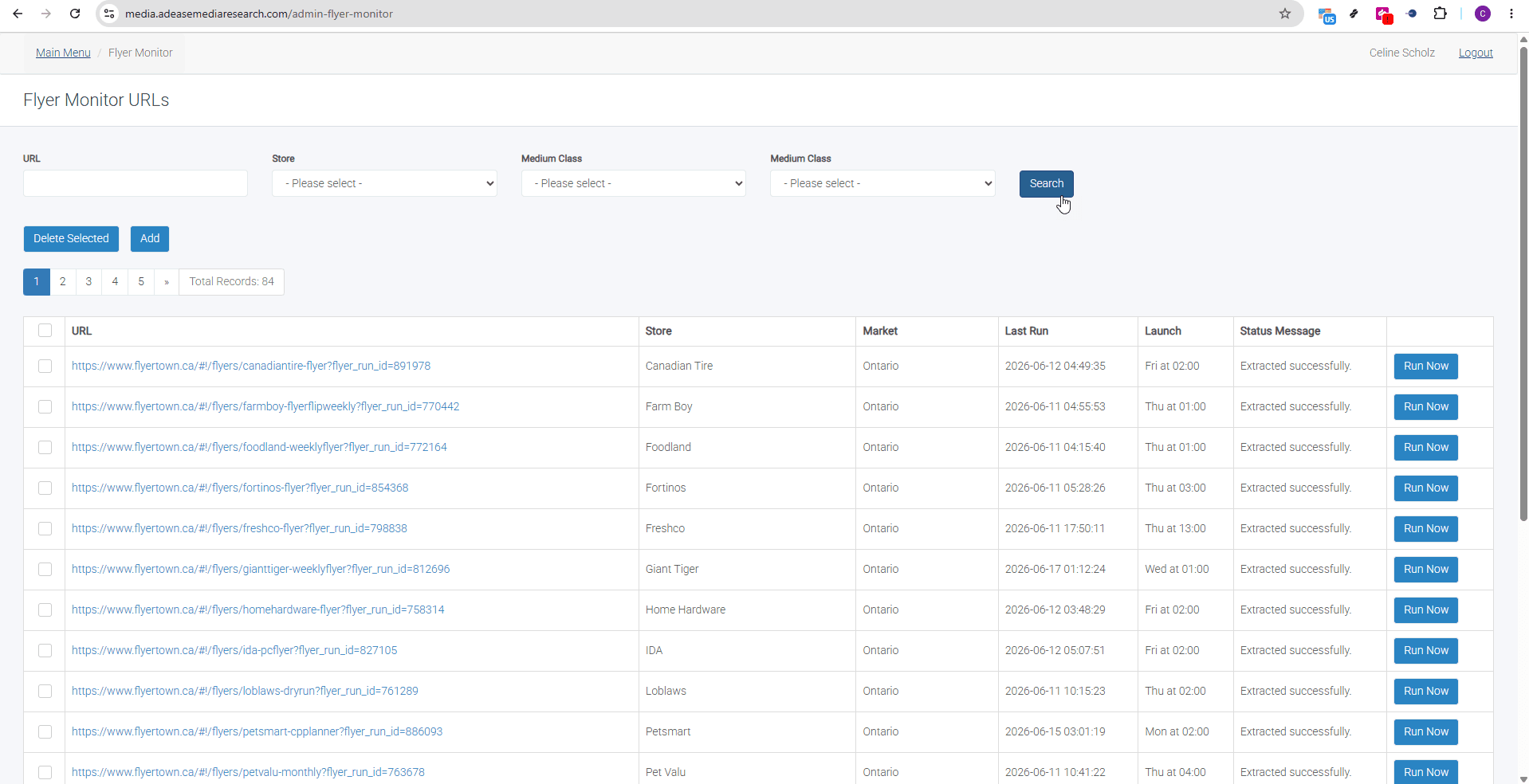
The table displays the following columns in order:
| Column | Description |
|---|---|
| URL | The explicit flyertown.ca URL the flyer is sourced from. Click to open the edit pop-up. |
| Store | The store name associated with the flyer. |
| Market | The city the flyer is available in. |
| Last Run | The last time the parser successfully collected this flyer. |
| Launch | The scheduled date and time the parser will go out to collect the flyer. This also coincides with the date the flyer starts. |
| Status Message | The result of the last collection attempt. The expected message is Extracted Successfully. |
| Run Now | Manually triggers the parser for that flyer. |
Status Messages
The Status Message column is the main indicator of flyer collection health. The only expected message is Extracted Successfully. Any other message indicates an error — contact the development team for help resolving it. Once the issue is resolved, use the Run Now button to restart the parser manually.
Adding a Flyer
To add a new flyer, click the Add button on the Flyer Monitor page. The form contains the same fields as the edit pop-up described below.
Before adding a flyer, confirm that the store already exists in the system. If it does not, you must add it first — see Stores below.
Finding the flyertown.ca URL: Visit flyertown.ca, locate the store you want to add, and copy the URL directly from your browser's address bar.
Editing a Flyer
Click the URL in the Flyer Monitor table to open the edit pop-up for that flyer. The following fields are available:
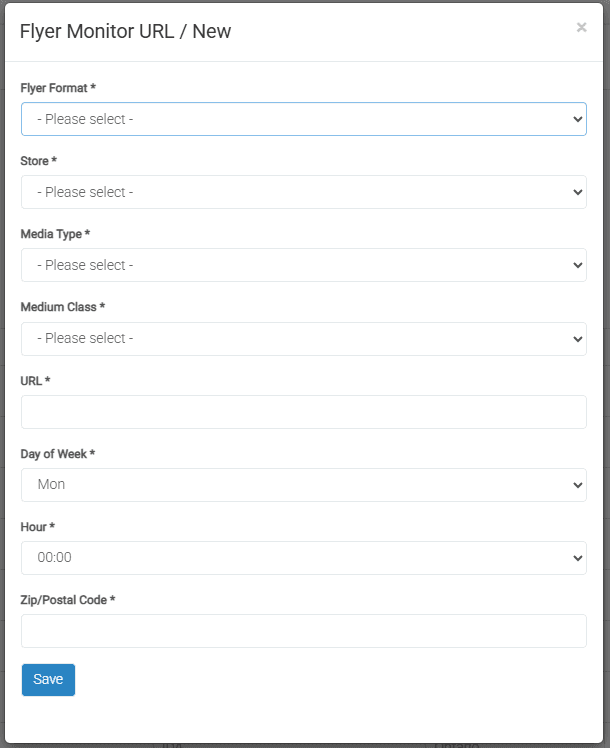
| Field | Description |
|---|---|
| Flyer Format | The shape and size of the flyer. Select from the fixed values in the dropdown. |
| Store | The store this flyer belongs to. If the store is not available in the dropdown, it must be added first — see Stores below. |
| Medium Class | The market (city) the flyer is available in. |
| URL | The flyertown.ca URL referencing the specific store flyer. |
| Days of the Week | The day(s) of the week the parser should go out to retrieve a new flyer. |
| Hours | The time of day the parser should collect the flyer. |
| Postal Code | A postal code within the target market. The exact postal code is not critical — it just needs to fall within the correct market to ensure the parser retrieves the location-specific version of the flyer. |
Deleting a Flyer
- Select the checkbox beside the flyer you want to remove.
- Click the Delete Selected button at the top of the page.
Stores
The Stores page manages the list of store names available in the Store dropdown when adding or editing a flyer.
To access it, open the Flyers menu in the Adease back-end and select Stores. From this page you can add new store names. If a store does not appear in the dropdown when adding or editing a flyer, it must be added here before proceeding.