Command Centre
Adease's proprietary desktop application for managing radio and television acquisitions.
Command Centre
Command Centre is a proprietary desktop application developed by Adease for managing radio and television acquisitions. It is the primary tool for monitoring recordings, checking for outages, managing stream URLs, and running rescans.
Getting access: Command Centre is installed on the user's computer and requires a VPN to be set up by an Adease administrator before the program can be accessed. Contact the Adease admin team to get your VPN configured.
Recorders
In Command Centre, stations are organized into Recorders. A Recorder is a container that groups stations by their collection method and market (city). Recorder names follow a standard naming convention based on channel and source type, making it easy to identify what a recorder covers at a glance.
| Recorder | Notes |
|---|---|
RADIO · Canada Radio | All internet stream |
TV · Canada TV | Sourced from TV appliance |
US · US Stream Radio | Stream-only market |
VPS · US Stream Radio | Stream + OTA market · paired with a CAP recorder |
CAP · US OTA Radio | Paired with a VPS recorder in the same market |
How Recording Works
TV and radio content is recorded in 3-hour blocks. These blocks are staggered across all stations — no two stations share the same start and end time. The purpose of staggering is processing efficiency: if all recordings ended at the same time, there would be a significant processing backlog. By offsetting the start and end times, the server can process files in a steady stream rather than in bursts.
Recording Graphics
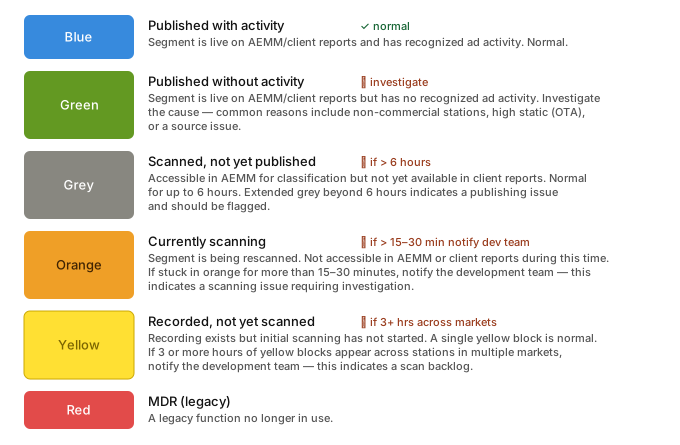
Recording graphics are an independent daily check. Acquisition staff review them to monitor the health of all station recordings and catch any flags — this is separate from the scanning pipeline and rescan process. These graphics should be reviewed at least twice per day.
To view: open the Rescan tab, select a date range and the markets or stations you want to check, then click Recording Availability. A pop-up will open displaying the colour-coded graphics for each station, showing the state of each 3-hour recording block across the selected date range.
Rescan
Once classification staff have finished monitoring and classifying all possible new ads for a given day, acquisition staff start a Rescan manually from the Rescan tab in Command Centre. The rescan runs the same fingerprint-matching process as the initial scan, but now with the newly classified ad fingerprints included in the database.
The primary purpose of the rescan is to capture activity that was missed during the initial scan — specifically, any occurrences of ads that were new at the time of initial scanning. Until the rescan runs, client reports will be missing occurrences for those newly classified ads.
The rescan can also be used to remove erroneous activity. If an ad is incorrectly classified (e.g., a non-ad was approved), it can be deleted via Ad Approval. Deleting an ad removes its fingerprint from the database. A focused rescan will then find no fingerprint match for that segment, which removes the associated activity from the database.
Rescan timing:
- A full day of US Radio can take 12–14 hours
- A full day of Canada Radio can take 6 hours
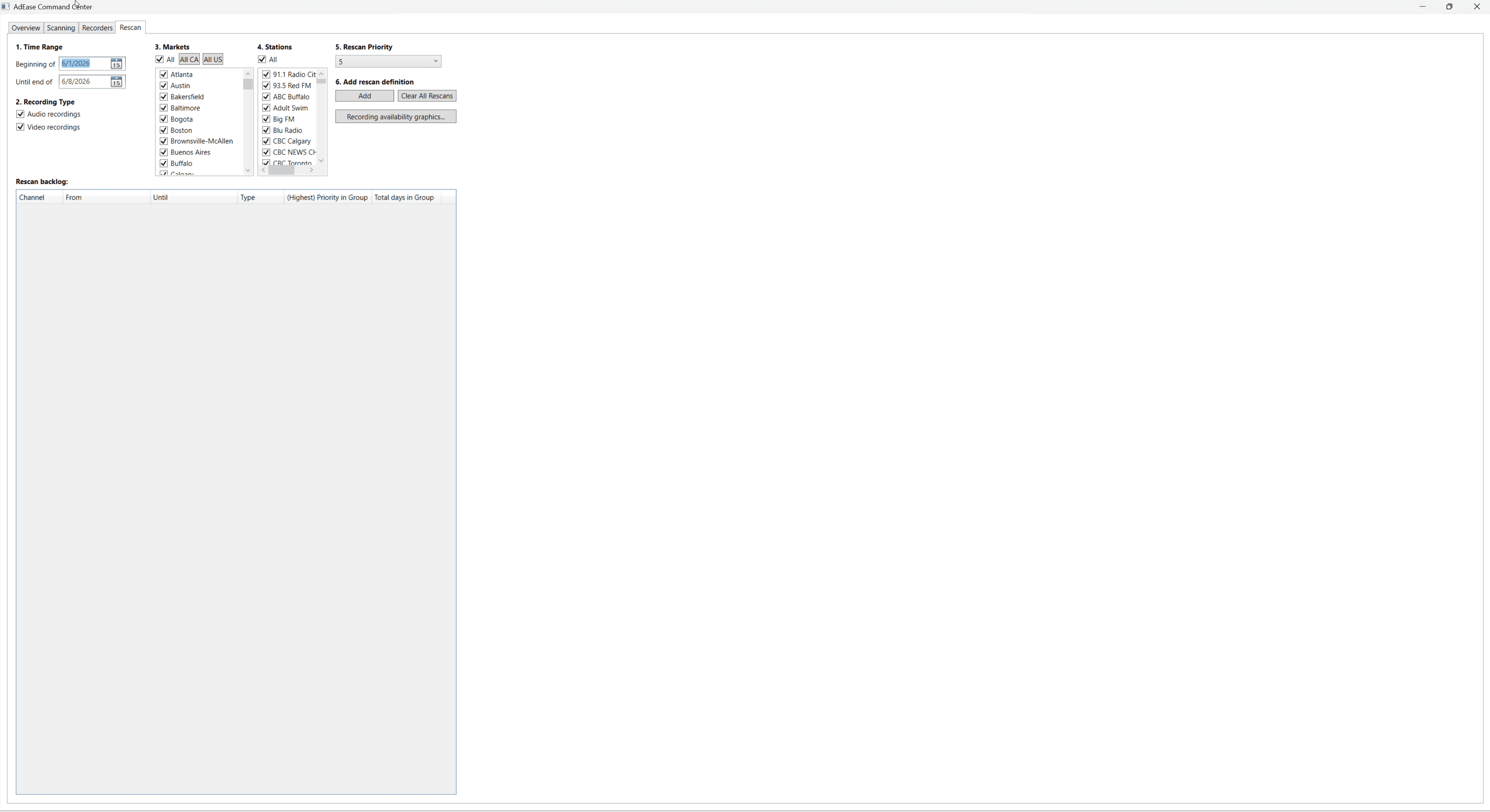
- Select the Rescan tab in Command Centre.
- Select the start and end date, as well as Audio or Video.
- Select the appropriate markets:
- Canada: Calgary, Edmonton, Montreal, Ottawa, Quebec City, Toronto, Vancouver
- US: Click the All US button
- Click the Add button to begin the rescan.
- Update the Rescan Log Calendar with the rescan details.
- Rescan is complete once the Rescan Backlog box is blank.
- The Overview tab also shows graphics for Rescan Progress Information.
Releasing Partials
A partial is an advertising record in the classification system that was recognized as only partially similar to a previously classified ad. This happens when audio quality issues — such as OTA static or antenna degradation — interfere with the fingerprint matching process, producing an incomplete match rather than a full one.
Partials apply to US data only. The US is the only region that uses OTA stations, and OTA collection depends on a physical antenna, which introduces the possibility of static and signal quality issues that stream collection does not have. The partial script is not coded to include Canadian data, so releasing partials has no effect on Canada.
Why the rescan must complete first: The rescan's job is to insert new advertising activity into the database after classification staff have reviewed and classified all unknown records for the day. Once the rescan runs, any ad records that were identified as only a partial match can then be included in the partial release process — the script matches those incomplete records to their fully-recognized counterparts in the database. If partials are released before the rescan finishes, the script runs against an incomplete database and will miss matches for any ads that were newly classified that day.
Releasing partials is always a manual step and will not be automated, as it has a hard dependency on the rescan completing first.
- Go to the Adease back-end site and select the Production Menu.
- Locate the page called AEMM Support Partials.
- Select the date you want to release partials and click Run.
Listening to Recordings
Listening to a recording allows you to hear exactly what was captured during a recording block. This is useful for identifying static or signal degradation, verifying that the correct station is recording, and for TV stations, checking for visual issues in the feed.
- Open the Recording Graphics pop-up from the Rescan tab. See Recording Graphics for instructions on accessing the pop-up.
- Click on any recording block — the coloured lines representing each 3-hour recording period.
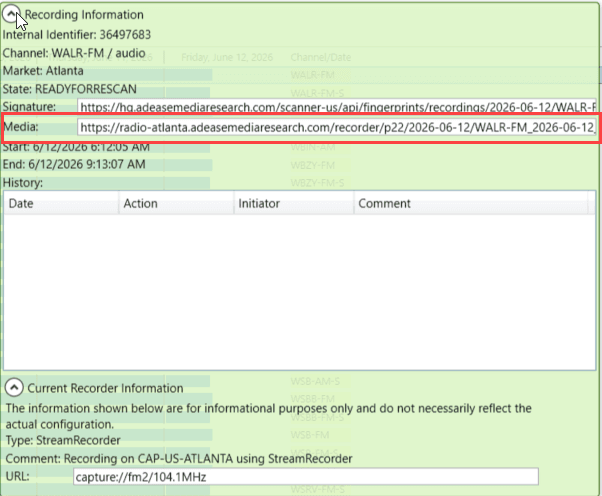
- A green pop-up will appear with details about that recording.
- Locate the URL labeled Media in the pop-up.
- Copy the full URL and paste it into your internet browser to play the recording.
Adding a Recorder
A recorder is added when Adease is expanding its monitoring capabilities to a new city. Before proceeding, ensure the new recorder's name follows the correct prefix convention outlined in the Recorders section above.
Step 1 — Notify the Development Team
Before making any changes in Command Centre, contact the Adease development team and provide the exact name of the recorder you intend to add. The back end must be updated to recognize the new recorder — if you add a recorder in Command Centre without this step, it will not work.
Wait for confirmation from the development team that the back-end changes have been made before proceeding.
Step 2 — Add the Recorder in Command Centre
- Open the Recorders tab in Command Centre.
- Click the Add Recorder Machine button in the top right of the page.
- A pop-up will appear — enter the name of the new recorder and confirm.
- The new recorder will appear in the list as a blank recorder.
Step 3 — Configure the Recorder
- Assign the timezone that reflects the city the recorder is representing.
- Assign a proxy for the city if one is available. If no proxy is available for that city, select None.
- Stations must also be added to the recorder before it can begin collecting. See Adding or Editing a Station to a Recorder for instructions.
Adding or Editing a Station to a Recorder
Adding a station is a two-part process: the station must first be registered in the Adease back-end, then added to the recorder in Command Centre.
Part 1 — Add the station in the Adease back-end
- From the Adease back-end landing page, open the Media menu and select Medias.
- Click the Add button. A pop-up will appear — select the Province or State and the City (Market), then click Add.
- Fill in the remaining fields:
- Medium — Radio or TV
- Media Owner — select from the dropdown. If the owner is not listed, use the + button in the field to add a new one.
- Language
- Media Type — the format of the station, e.g. Top 40, Country, News, Classical.
- Name — the station's 3–4 letter call sign. This is the identifier used in Command Centre and by the broadcast industry.
- Second Name (optional) — the station's brand name, e.g. Virgin Radio, Kiss Radio, Chum FM.
- Type — applicable to radio only. Select Stream or OTA depending on how the station is collected.
- Review the checkboxes at the bottom of the form:
- Client Visible — controls whether the station appears in client reports.
- Static Station — marks the station as having static. Stations with this checked will be excluded from AEMM monitoring when staff apply the static station filter.
- AI Processing — enables AI-assisted product identification during classification.
- Market Cast Report — legacy field, not in use.
Note: The fields Media Type, Total Column, Total Line, and Circulation Points are legacy fields for other mediums and do not need to be filled in.
- Save the station to complete the back-end registration.
Part 2 — Add the station in Command Centre
- Open Command Centre and navigate to the recorder you want to add the station to.
- Click the Add New Channel button. A blank entry field will appear.
- Enter the station's call sign (3–4 letters) in the name field.
- Paste the station's stream URL into the URL field.
- To add another station, click Add New Channel again and repeat.
- Once all stations have been entered, click Save Changes and Restart Recorder to apply.