Adding a New Product
Step-by-step guide for adding a new product to the Adease database from either the Ad Approval page or the Products page.
Adding a New Product
New products can be added to the Adease database from two locations in the backend. The steps are the same regardless of which page you use.
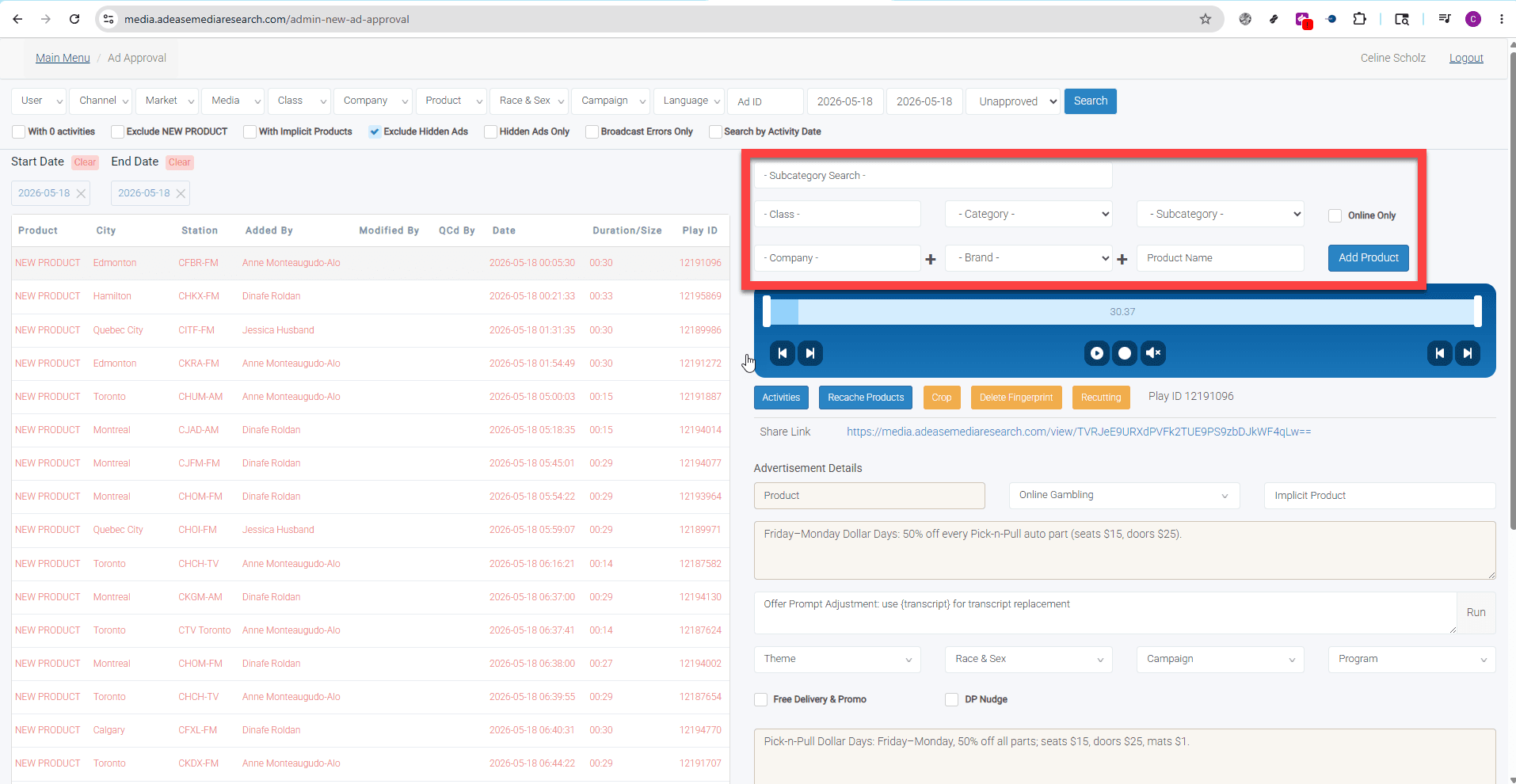
- Ad Approval Page — Located under the Ad Management menu. Use this when you encounter a NEW PRODUCT while reviewing ads. NEW PRODUCT is a system placeholder that appears on any ad that has not yet been assigned a product record. The entry fields appear above the media player.
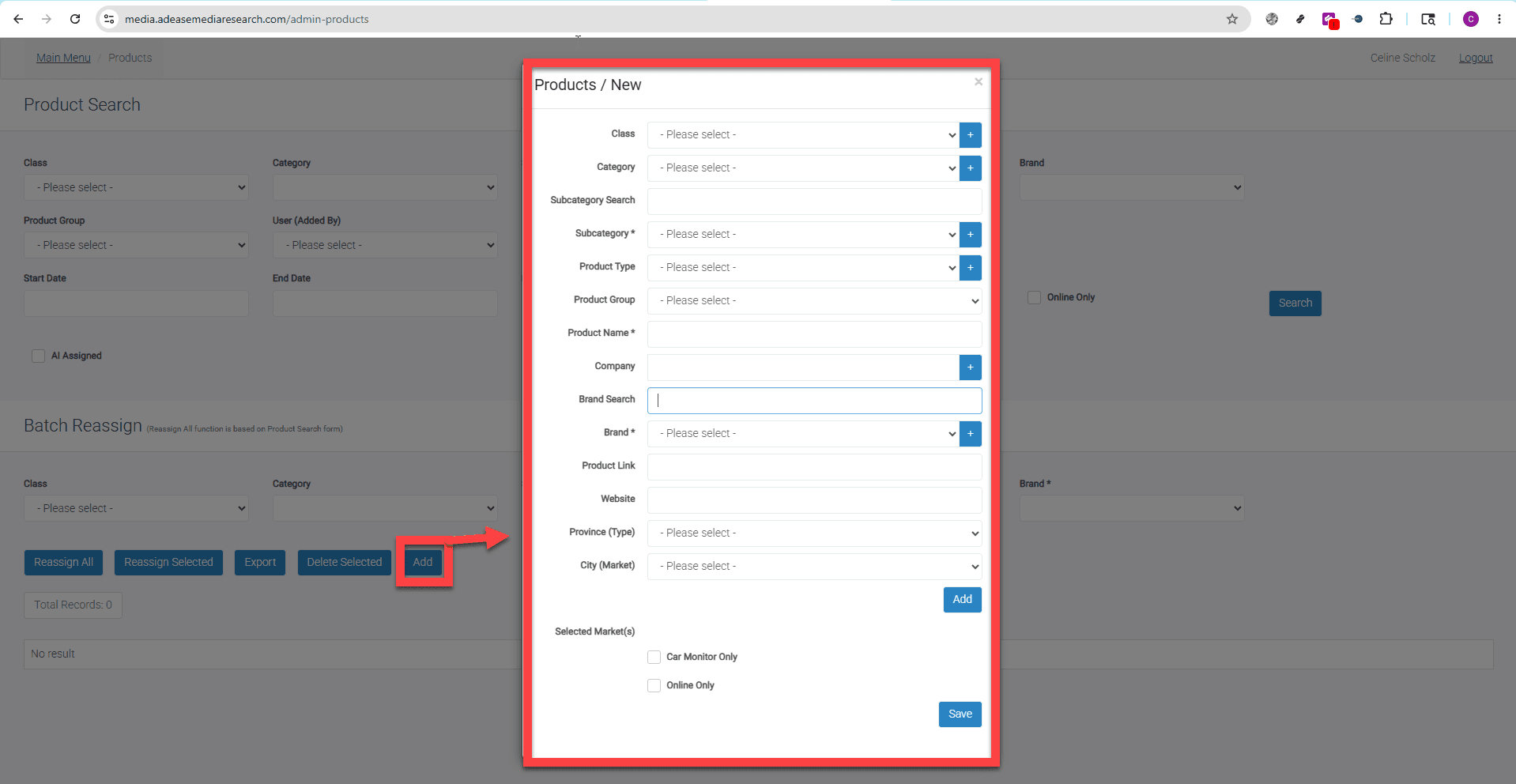
- Products Page — Located under the Classification menu. Use this when adding a product outside of the ad approval workflow. Click the Add button at the bottom of the Product Search section to open the Products / New form.
Before You Begin: Check for Duplicates
Before creating a new product record, always search the database first to confirm the product does not already exist. Adding duplicate records creates inconsistencies in the data that are difficult to clean up later.
Search by product name or brand on the Products page before proceeding. Only create a new record if you are confident the product is not already in the system.
Steps
Step 1: Determine Class, Category, and Subcategory
Identify the Class, Category, and Subcategory that best match the new product before entering anything.
- If you already know the Subcategory name, type it into the Subcategory Search field — this will auto-fill the corresponding Class and Category fields.
- If you are unsure which Class, Category, or Subcategory to use, refer to the relevant guide in the Categories section of this documentation.
Step 2: Check the Company Field for an Existing Record
The Company field refers to the parent organization that owns the brand — not the brand name itself. For example, the company for Sensodyne is GlaxoSmithKline, not Sensodyne.
Before adding a new company, always check whether it already exists in the database to avoid duplicate records.
- Start typing the company name in the Company field — the field searches as you type and will suggest matching records.
- If the company already exists, select it from the list.
- If the company is not listed, click the + button next to the Company field to create a new record.
Tip: If you are unsure who the parent company is, search online. For example: "What is the parent company of Sensodyne?"
Step 3: Search Existing Brands for the Selected Company
Once the company is selected, check whether the brand already exists before creating a new one.
- If you selected an existing company, use the Brand dropdown to check whether the brand is already associated with it. If the brand exists, select it. If not, click the + button to add it.
- If you created a new company, there will be no brands associated with it yet — click the + button next to the Brand field to add the brand.
Step 4: Enter the Product Name
Enter the product name in the Product Name field in all caps, following this format:
[BRAND] [PRODUCT LINE / VARIANT] [PRODUCT TYPE]
| Part | What it means | Example |
|---|---|---|
| Brand | The brand name as it appears on the product | SENSODYNE |
| Product Line / Variant | The specific product line, flavour, or variant | PRONAMEL |
| Product Type | The general type of product | TOOTHPASTE |
More examples:
TIDE PODS LAUNDRY DETERGENTCAMPBELL'S CHUNKY CHICKEN NOODLE SOUPNIKE AIR MAX RUNNING SHOES
If the product has no distinct variant or product line, use just Brand + Product Type — e.g.
HEINZ KETCHUP
After Saving
Once all fields are complete, click Save or Add Product to create the record.
- Ad Approval Page — The product is immediately assigned to the ad you have open. The ad record updates without leaving the page.
- Products Page — The Products / New modal closes and the product record is saved to the database.
Made a Mistake?
Don't worry — everything is fixable. If you entered an incorrect product name, assigned the wrong taxonomy, or linked the wrong Company or Brand, you can correct it at any time. See Editing a Company, Brand or Product for instructions.